The Alterations page gives you an overview of every alteration in your store, along with the tools to find a specific one and to keep an eye on due dates so nothing slips through the cracks.
To get there, open the top-left menu and go under Alterations.
The two views
At the top of the list, you can switch between two tabs.
Items — every alteration is shown on its own row. Each row displays the status badge, ASR#, the Piece(s) being altered, the Holder (client), the Store, the Fitting date, who did the fitting (Fitting by), the Due date, the Tailor Shop and the Tailor (see picture below).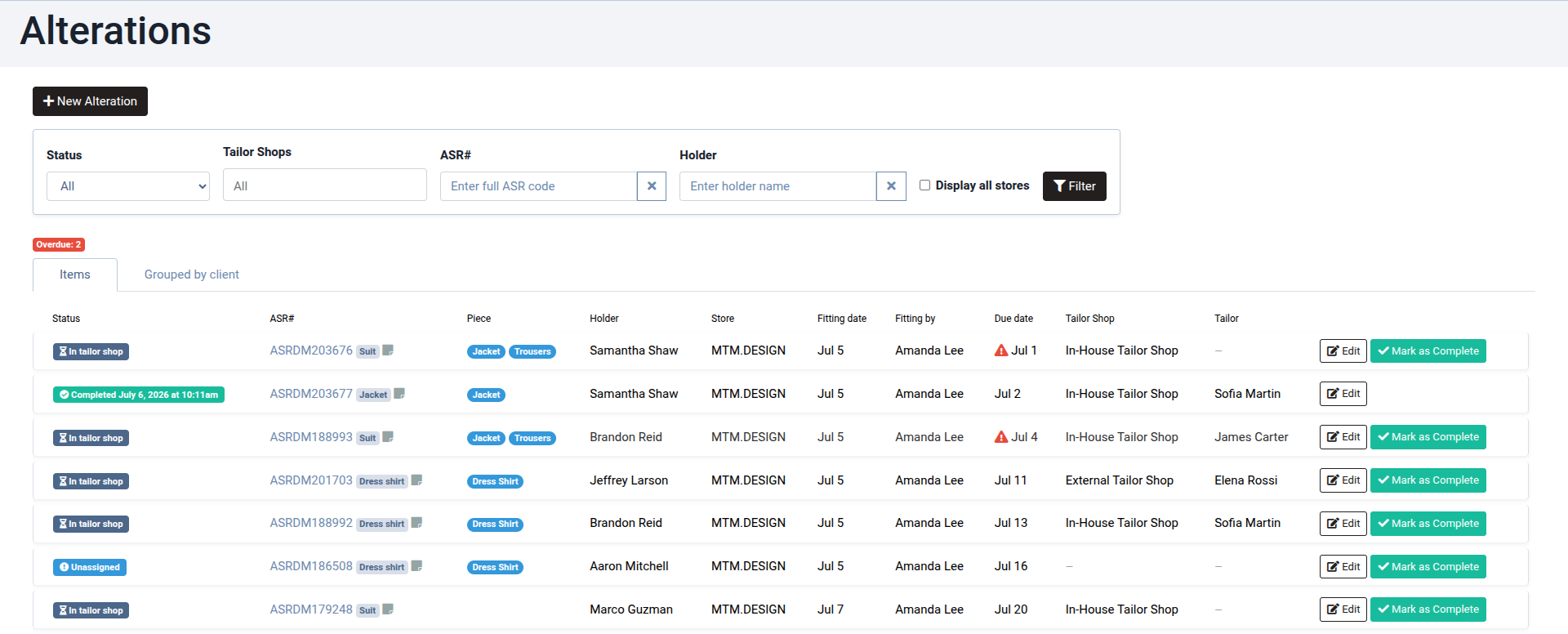
Grouped by client — the same alterations, grouped under each client, with the client's soonest due date shown next to their name (see picture below).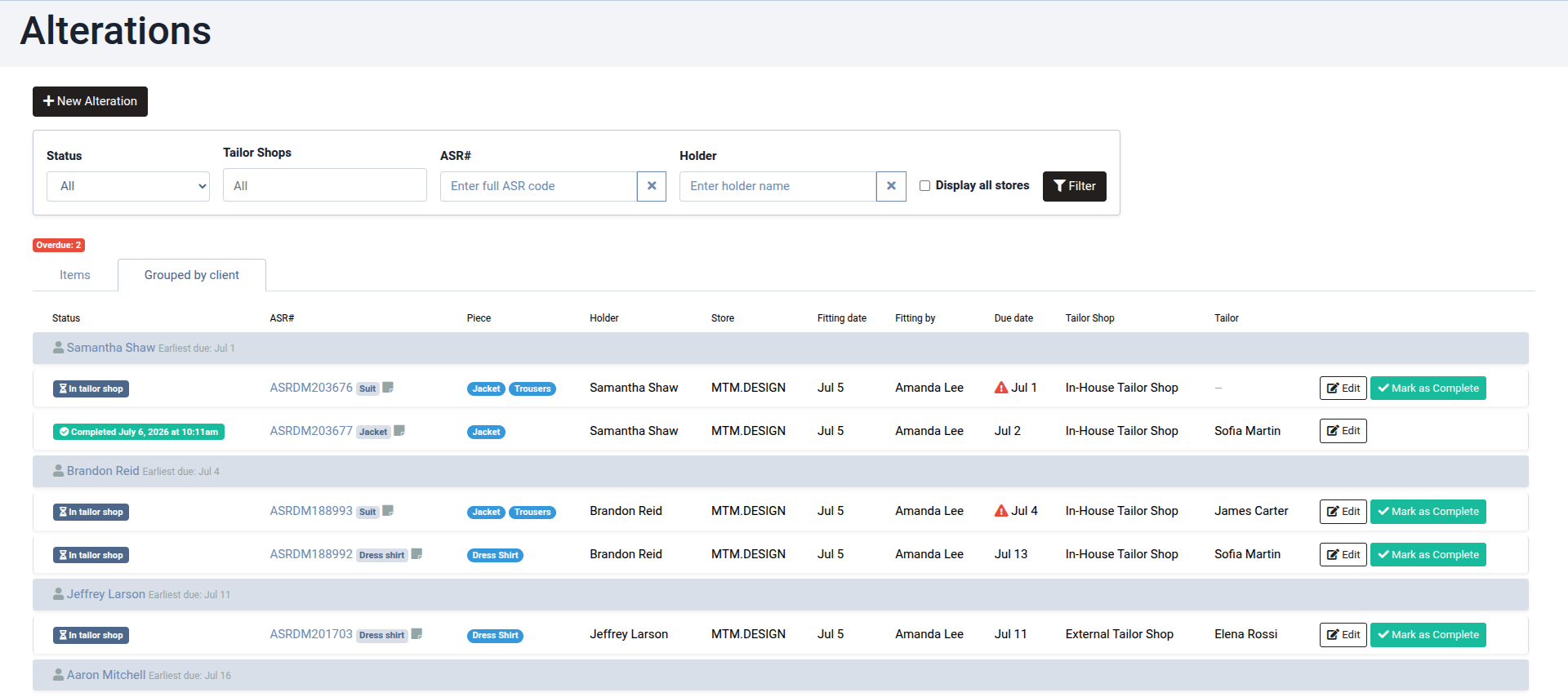
Keeping track of due dates
The Alterations page is also your main tracking tool:
- A red Overdue: N badge at the top tells you how many alterations are past their due date and still not completed.
- In the Due date column, any overdue alteration is flagged with a red ⚠ warning icon next to the date.
- The status badge (Unassigned / In tailor shop / Completed) shows where each alteration stands.
Searching and filtering
At the top of the page, you have several filters (see the pictures above):
- Status — show All, Unassigned, In Tailor Shop, or Completed alterations.
- Tailor Shops — limit the list to one or more tailor shops.
- ASR# — search for a specific item by its full ASR code.
- Holder — search by client name.
- Display all stores — check this box to include alterations from all of your brand's stores, not just your current one.
After adjusting the filters, click on Filter to apply them.
Where else alterations show up
Alterations also surface in two other handy places:
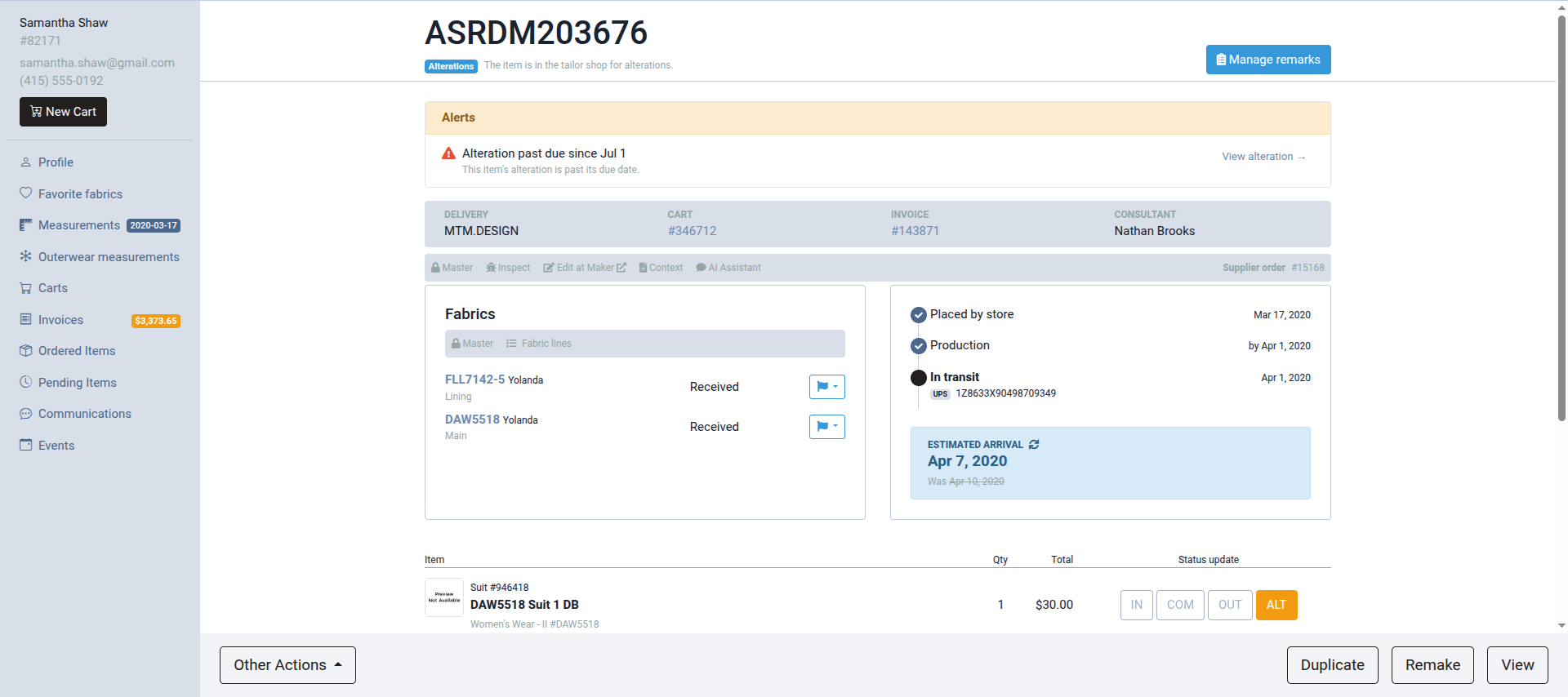
- On the item's page — when an item's alteration is past due, an alert appears at the top of the page, in the Alerts section: "Alteration past due since [date]". A View alteration → link takes you straight to it (see picture below).
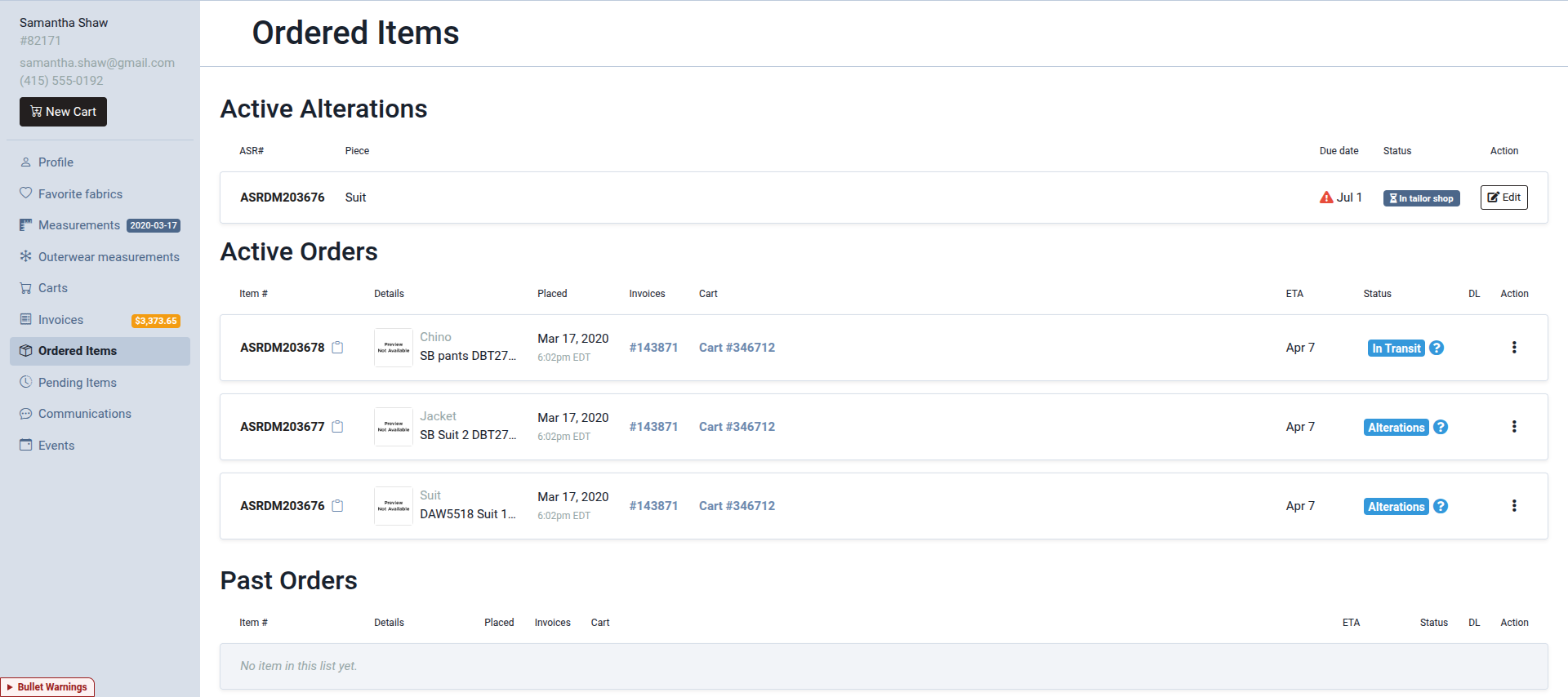
- On the client's page — from a client's profile, go to Ordered Items in the left menu. If the client has any alteration that is not yet completed, an Active Alterations section is shown at the top, listing each one with its ASR#, Piece, Due date, Status and an Edit button (see picture below).
*** Please note:
- By default, the list opens on the In Tailor Shop status, so Unassigned or Completed alterations will not appear until you change the Status filter. Your filter choices are remembered as you move around the platform.
- An alteration is considered overdue only when it has a due date in the past and has not been marked as completed. Setting a due date when you create the alteration is what makes all of this tracking work — so it is always a good idea to add one.
Was this article helpful?
That’s Great!
Thank you for your feedback
Sorry! We couldn't be helpful
Thank you for your feedback
Feedback sent
We appreciate your effort and will try to fix the article