After an alteration is created, you can change its details, mark it as completed when the work is done, or delete it if it was created by mistake. All of this is done from the alteration's Edit screen — and completing can also be done straight from the list.
Editing an alteration
From the Alterations page, find the item and click on Edit (see picture below). From here you can update any of the alteration's details:
- Fitting date and Due date
- Boutique and Fitting by
- Tailor Shop and Tailor
- The Pieces being altered
- The Note
- Its Work Items (see How to log work on an alteration?)
When you are done, click on Save.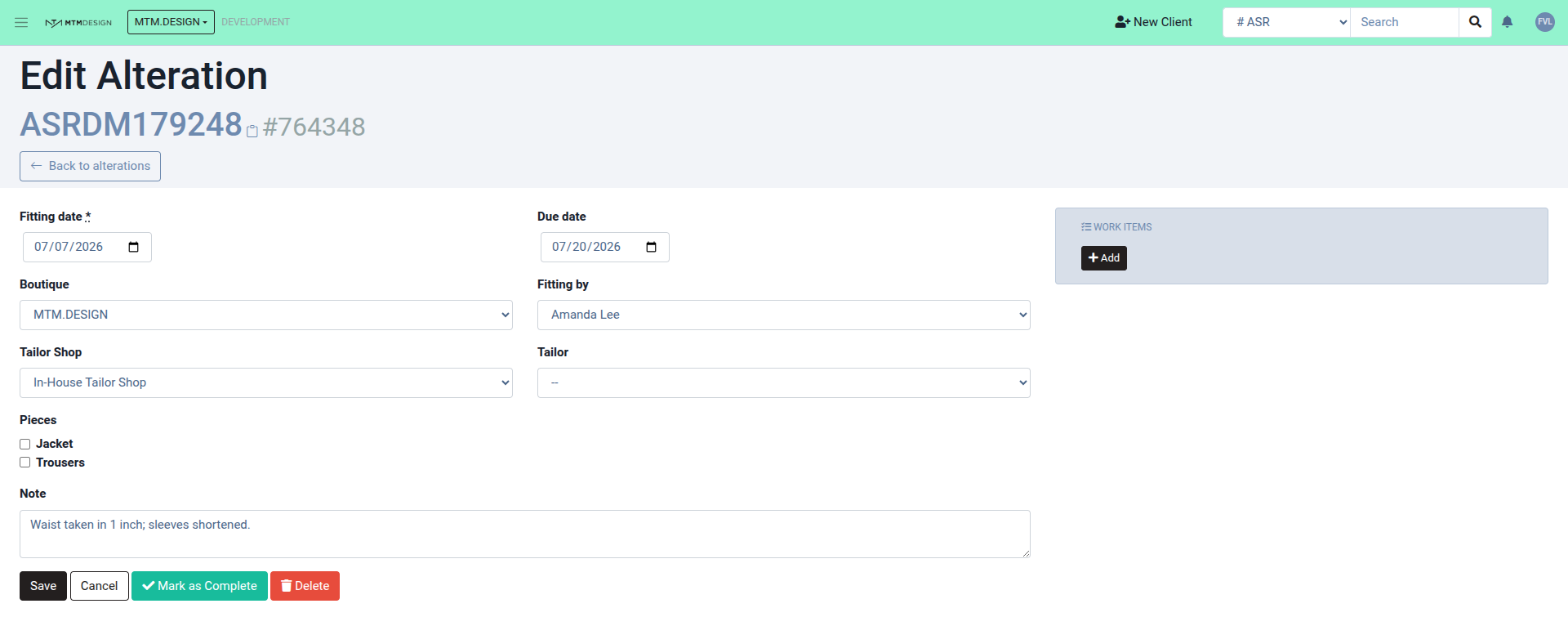
Marking an alteration as completed
When the tailoring work is done and the item is ready for the client, mark the alteration as completed. This keeps your Alterations list clean and stops the item from showing up as pending or overdue. You can do it in two ways:
- From the Alterations list — click the green ✔ Mark as Complete button on the item's row (see picture below).
- From the Edit screen — click the green ✔ Mark as Complete button at the bottom of the form. You will be asked to confirm.
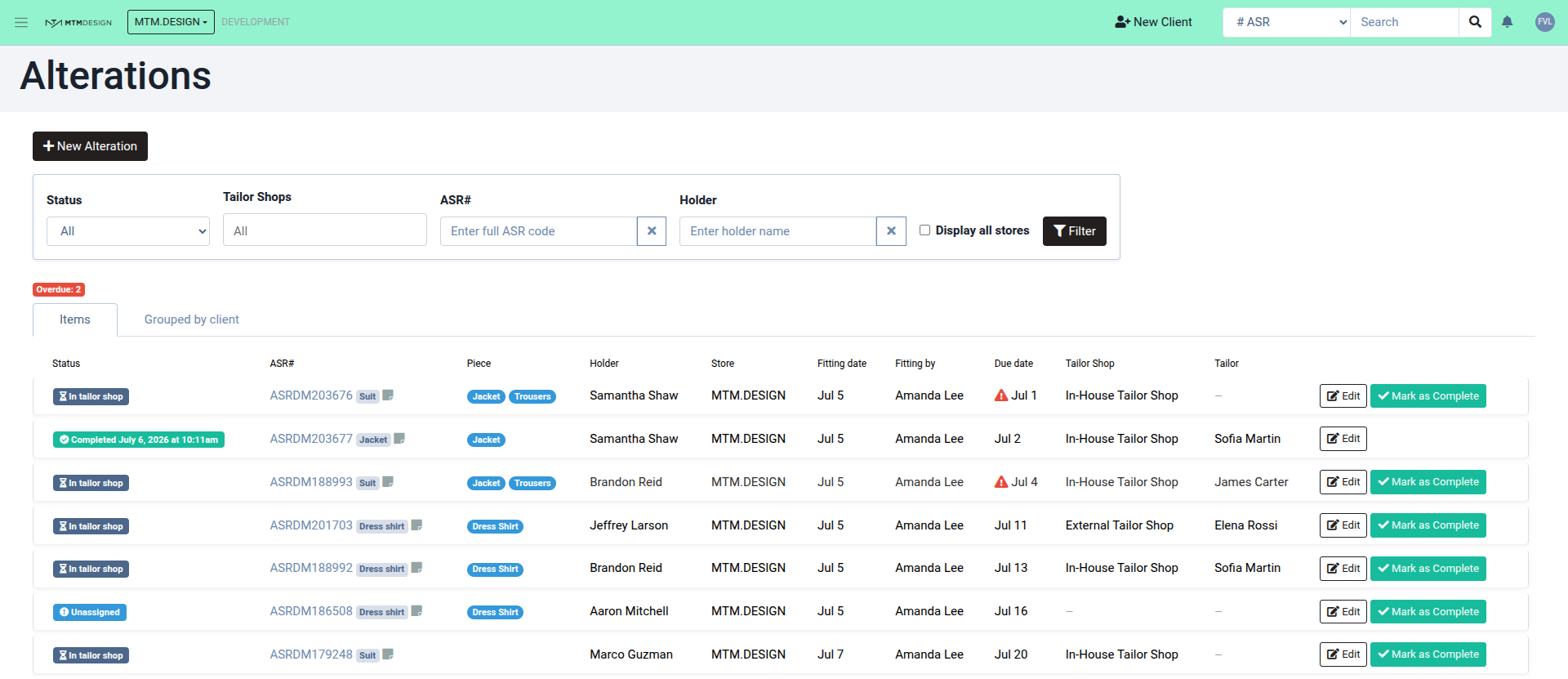
Once completed, the alteration's status badge turns green and shows Completed along with the date and time it was finished. It is then removed from the default In Tailor Shop view and from the client's Active Alterations section.
Deleting an alteration
If an alteration should not exist at all, open it with Edit and click on the red ? Delete button at the bottom of the form (see the first picture above). You will be asked to confirm before it is removed.
*** Please note:
- A completed alteration is not deleted — you can still find it by setting the Status filter to Completed on the Alterations page, and it can still be edited if needed.
- Deleting is meant for alterations created by mistake. If the work is simply finished, use Mark as Complete instead.
- Once an alteration is deleted, the item is free to have a new alteration created for it again if needed.
Was this article helpful?
That’s Great!
Thank you for your feedback
Sorry! We couldn't be helpful
Thank you for your feedback
Feedback sent
We appreciate your effort and will try to fix the article