An item is one garment you build for a client: a shirt, a jacket, a pair of trousers. You build it inside a cart, and one cart can hold everything the client is buying at that moment.
Open a cart
Go to the client's profile and click New Cart in the left menu. If the client has no profile yet, create one first.
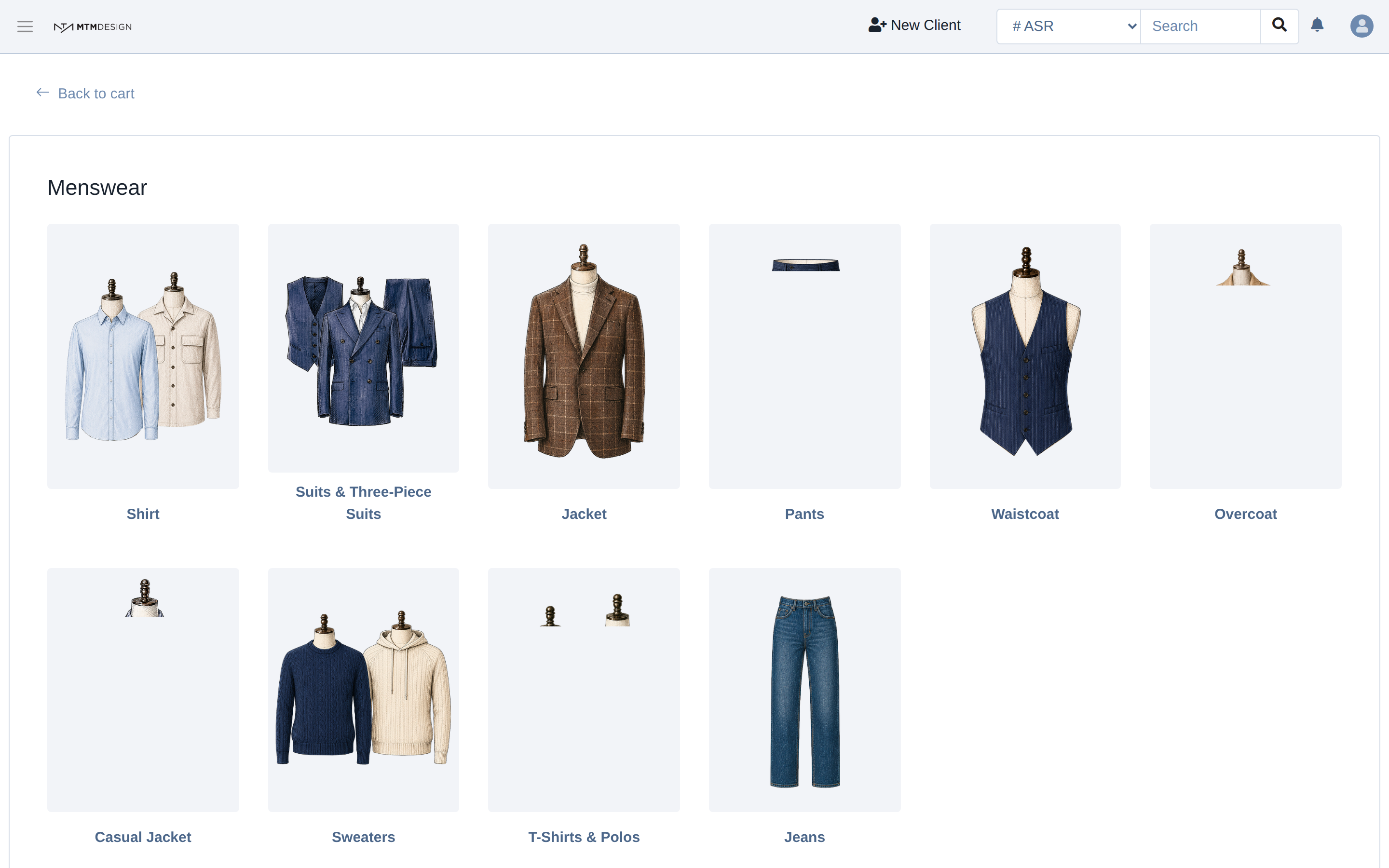
Choose a category
The first screen shows every kind of garment your store can sell. Pick the one you are selling.
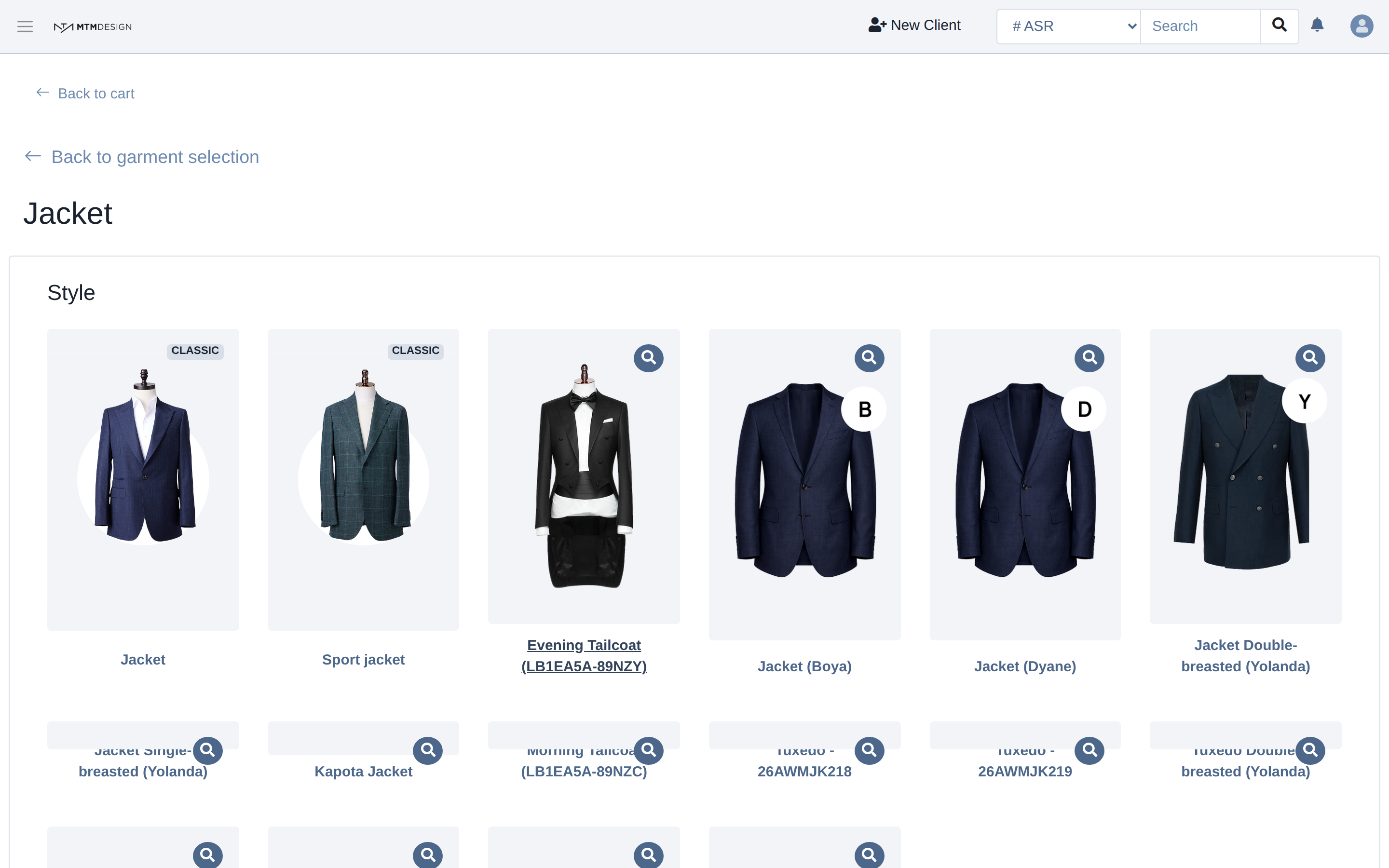
Choose a model
Each category holds the models you have access to. A model comes from one maker and carries its own options and its own price, so two jackets in this list are not the same jacket.
Make the required choices
The builder opens on the model's choices. A red star marks the ones you have to make yourself, because they have no default. On this jacket there are four: the main fabric, the lining fabric, the buttons and the back vent. The fabric pickers search by fabric code, not by colour name, so type the code your client picked from the book.
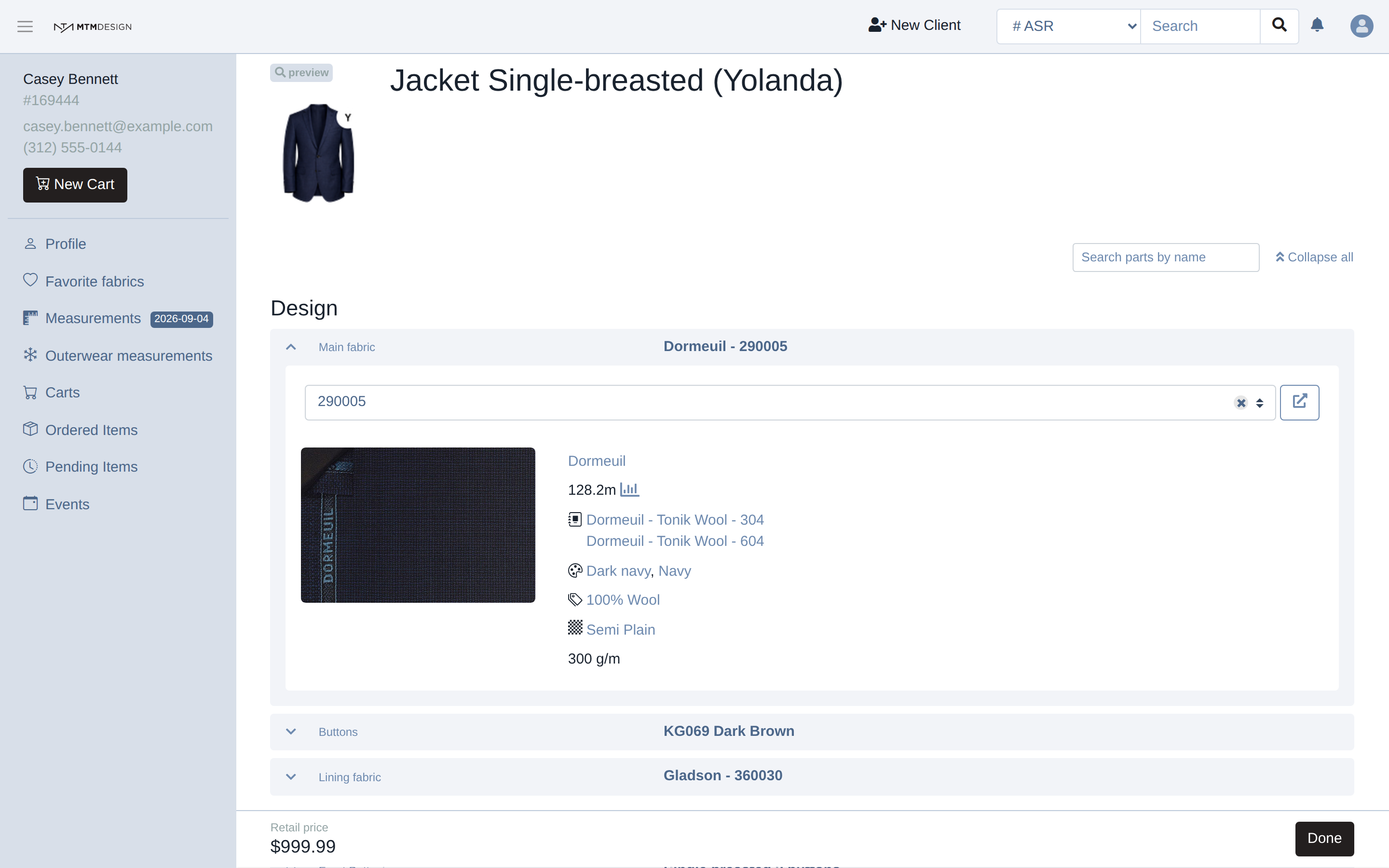
Leaving a required choice empty does not stop you from saving the item, but it does stop the item from going into production, and the cart shows a red warning on the row until you fill it.
Everything else already has a default
Every other line already holds a value, so the jacket is ready to order once the required choices are made. Change the ones your client cares about and leave the rest. Search parts by name finds a line quickly, and Collapse all shows the whole garment at a glance, each line with the choice it currently holds.
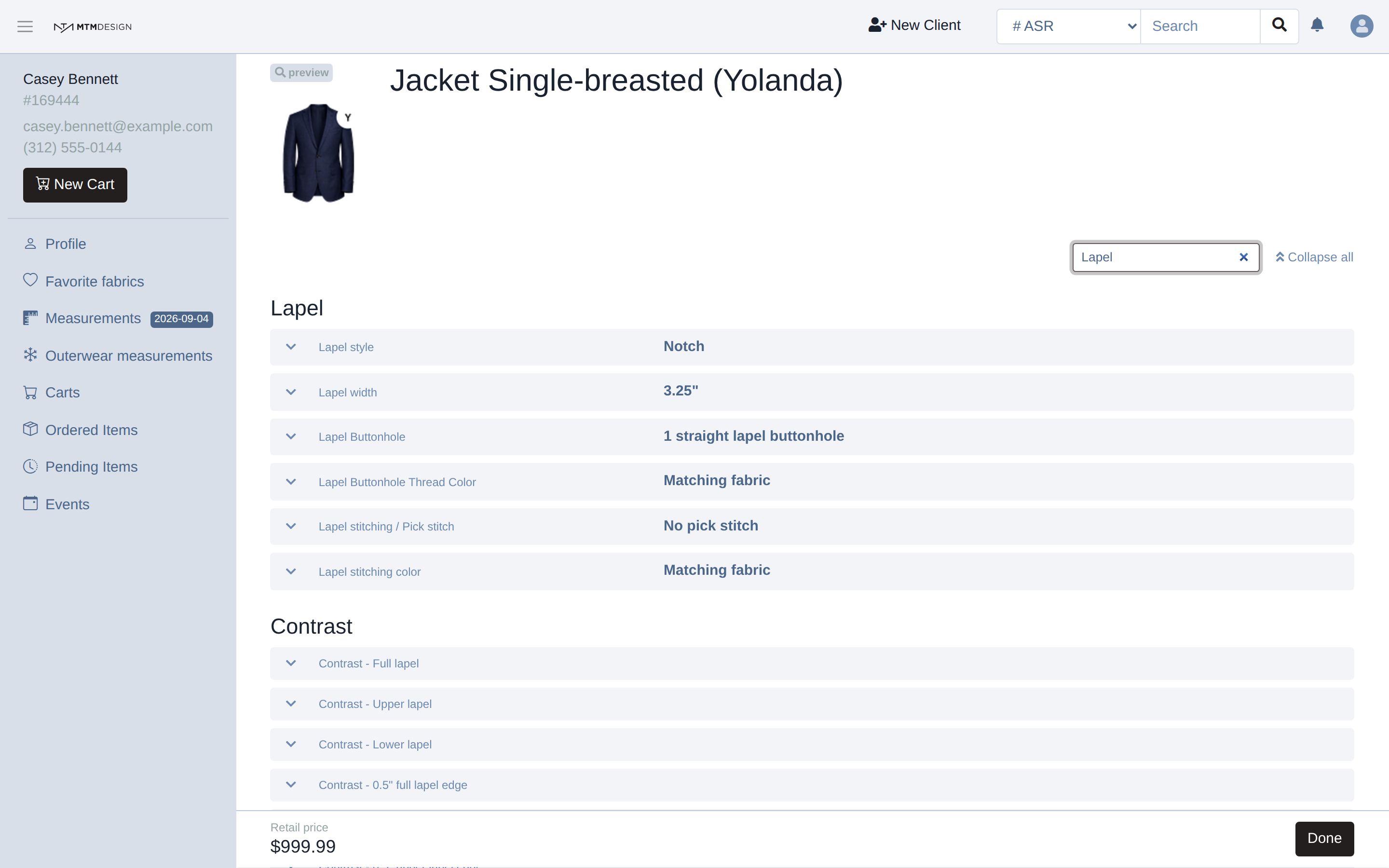
Each choice saves on its own as you make it, and the retail price at the bottom of the page follows what you choose.
Back to the cart
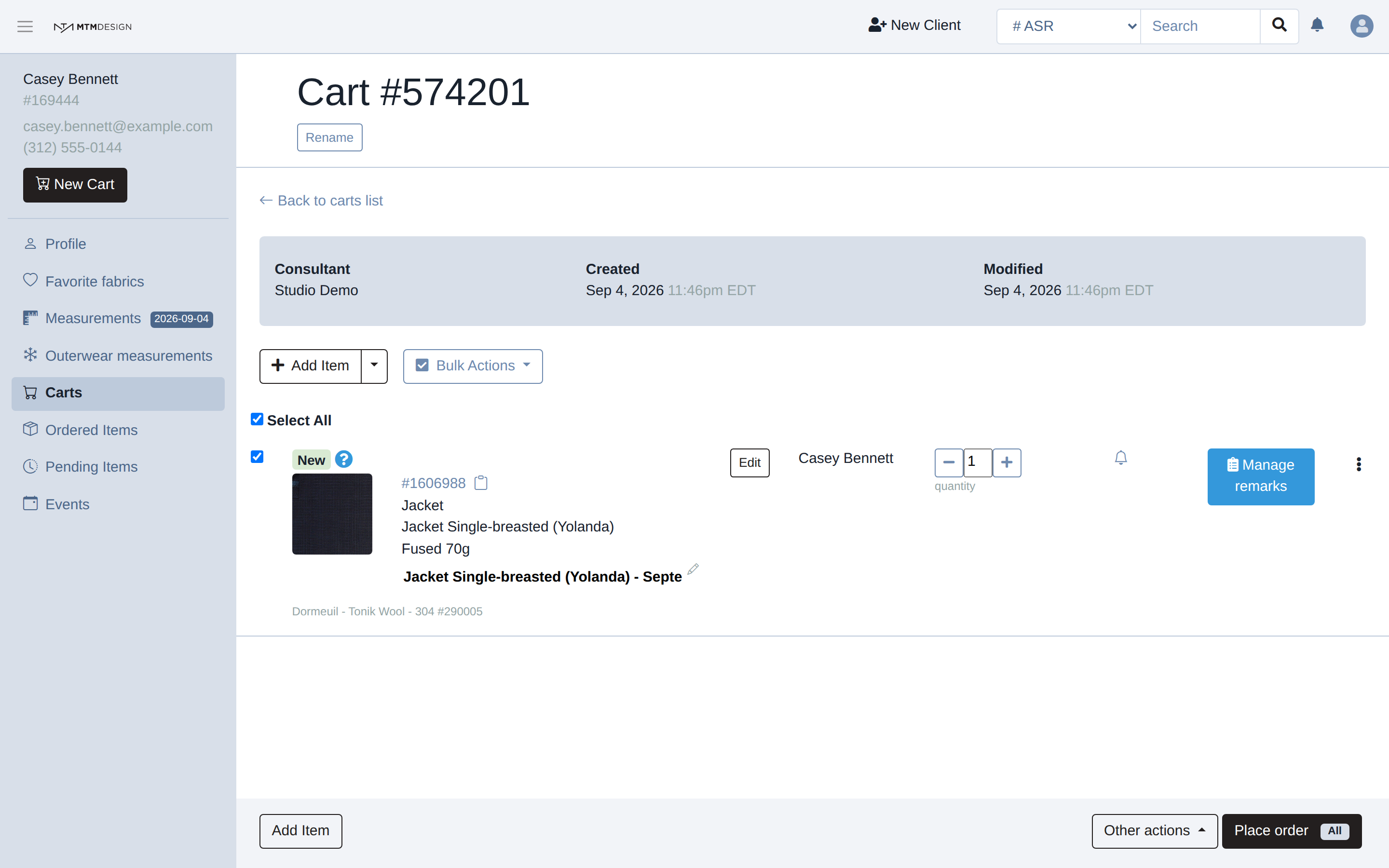
Click Done at the bottom right. The item is now in the cart, and it stays editable there until you place the order. Whether the cart shows a price depends on how your brand is set up; the builder always shows one while you work.
Next step
Add more items to the same cart if the client is buying more than one garment, then place the order.
Was this article helpful?
That’s Great!
Thank you for your feedback
Sorry! We couldn't be helpful
Thank you for your feedback
Feedback sent
We appreciate your effort and will try to fix the article